

Parameters
Adjust the intensity of colors in the image.Range:
-100 to 100Default: 0Rotate colors around the color wheel.Range:
0 to 100Default: 0Adjust the difference between light and dark tones.Range:
-100 to 100Default: 0Apply a subtractive color tint over the image.Format: Hex color code (e.g.,
aaffff, ff0000)Default: ffffff (no tint)Apply a sepia tone effect to the image.Range:
0 to 100Default: 0How it works
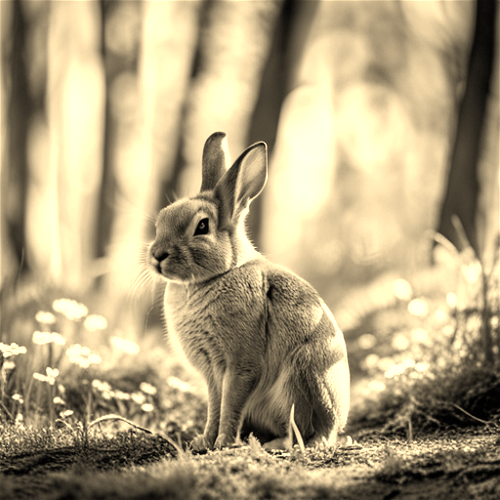
Bunny Optimizer provides multiple color manipulation tools: Saturation: Controls color intensity. Negative values desaturate (moving toward grayscale), positive values increase color vibrancy. Hue: Rotates colors around the color wheel. Every 33 units shifts to the next primary color in the spectrum. Contrast: Adjusts the difference between bright and dark areas. Positive values increase contrast, negative values reduce it. Tint: Applies a subtractive color overlay. The tint color is subtracted from the image, creating a color cast effect. Sepia: Converts the image to warm brown tones reminiscent of antique photographs.Usage
Saturation adjustment
Control the intensity of colors in your image. Negative values desaturate toward grayscale, while positive values increase color vibrancy.Comparison
| saturation=-100 | saturation=-25 | saturation=0 | saturation=25 |
|---|---|---|---|
 |  |  |  |
-100 produces a completely grayscale image. Useful for creating black and white photos, reducing oversaturated colors, or maintaining consistent color intensity across different source images.
Hue rotation
Rotate colors around the color wheel. The hue parameter shifts colors through the spectrum, with every 33 units moving to the next primary color.Original colors
| hue=0 | hue=33 |
|---|---|
 |  |
| hue=66 | hue=90 |
|---|---|
 |  |
Contrast adjustment
Adjust the difference between bright and dark areas. Positive values make bright areas brighter and dark areas darker, while negative values flatten the tonal range.Original contrast
| contrast=0 | contrast=20 | contrast=-20 |
|---|---|---|
 |  |  |
Tint application
Apply a subtractive color tint over the image. The tint function works by subtracting the specified color from the image, creating a color cast effect.Apply cyan tint
| Original | tint=aaffff (cyan) | tint=ffffaa (yellow) | tint=ffaaff (magenta) |
|---|---|---|---|
 |  |  |  |
# prefix.
Sepia effect
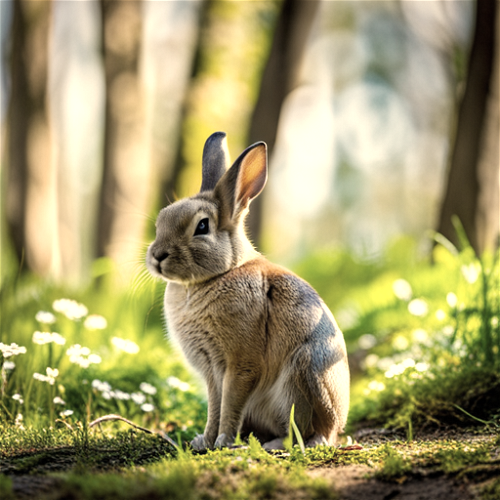
Apply a warm, brown-toned sepia effect reminiscent of antique photographs. The intensity ranges from 0 (no effect) to 100 (full sepia tone).Apply sepia effect
| sepia=0 | sepia=50 | sepia=100 |
|---|---|---|
 |  |  |
Combining color adjustments
Color manipulation parameters work seamlessly together and with other Bunny Optimizer transformations:Desaturate and increase contrast
Hue shift with brightness
Sepia with gamma correction
Tint and resize