> ## Documentation Index
> Fetch the complete documentation index at: https://bunnynet-cb9733c2-onclientmiddleware.mintlify.site/llms.txt
> Use this file to discover all available pages before exploring further.
# Add Funds
> Add credit to your bunny.net account balance.
bunny.net operates on a Pay As You Go model. You add credit to your account, and charges are deducted as you use services. You only pay for what you actually use.
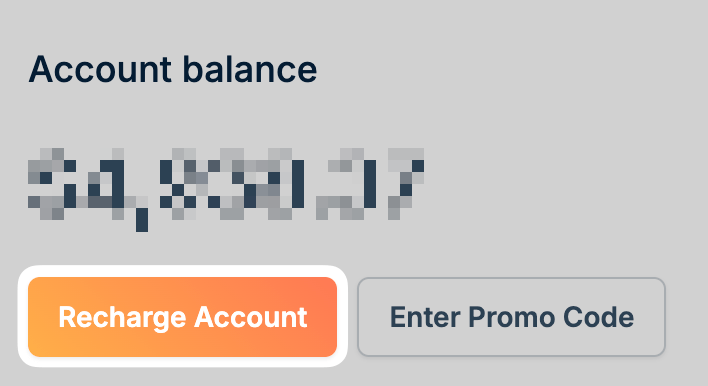
You can add funds from the [Billing](https://dash.bunny.net/account/billing) page by clicking **Recharge Account**.
 ## Adding funds
Navigate to [Billing](https://dash.bunny.net/account/billing) in your
dashboard.
Click the **Recharge Account** button.
Select an amount: \$10, \$25, \$50, \$100, \$250, \$500, \$1000, \$2000, or
enter a custom amount.
Choose **Card or PayPal** or **Crypto**, then select or add a payment
method.
Click **Pay** to add the funds to your account.
## Accepted payment methods
We accept the following payment methods with no extra fees:
* PayPal
* Visa
* Mastercard
* American Express
* Discover
* JCB
* Diner's Club
* Bitcoin
* Apple Pay
Your credit card information is never sent to bunny.net. Payment details are
securely stored by Braintree.
## Applying a promo code
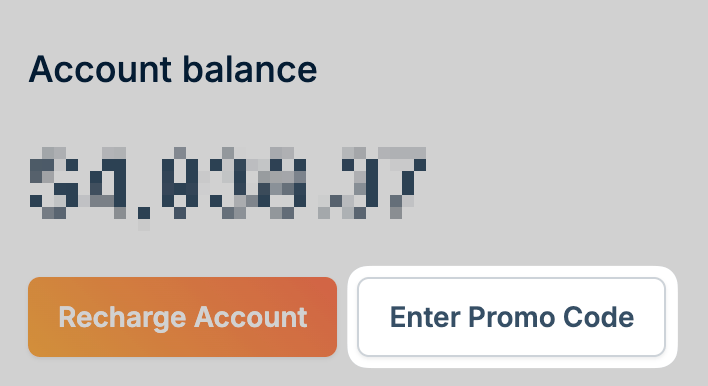
If you have a promo code, click **Enter Promo Code** on the Billing page, enter your code, and click **Apply Code**.
## Adding funds
Navigate to [Billing](https://dash.bunny.net/account/billing) in your
dashboard.
Click the **Recharge Account** button.
Select an amount: \$10, \$25, \$50, \$100, \$250, \$500, \$1000, \$2000, or
enter a custom amount.
Choose **Card or PayPal** or **Crypto**, then select or add a payment
method.
Click **Pay** to add the funds to your account.
## Accepted payment methods
We accept the following payment methods with no extra fees:
* PayPal
* Visa
* Mastercard
* American Express
* Discover
* JCB
* Diner's Club
* Bitcoin
* Apple Pay
Your credit card information is never sent to bunny.net. Payment details are
securely stored by Braintree.
## Applying a promo code
If you have a promo code, click **Enter Promo Code** on the Billing page, enter your code, and click **Apply Code**.
 ## How billing works
### Traffic billing
You are charged for each outbound byte transferred from the bunny.net network. Incoming traffic from your server to our network is free. If a 1GB video is viewed 100 times, you are charged for 100GB. Partial downloads are only charged for the bytes transferred.
### Storage billing
Storage is charged based on usage in the past period, usually less than 24 hours. Data that is uploaded and deleted within this period is only charged for that time, not the whole month.
### Minimum monthly usage
Your credits never expire. However, there is a \$1 minimum monthly usage while you have active zones on your account. If your usage is below \$1, it will be rounded up to \$1 for that month. This applies to the entire account, not per zone.
### Minimum account balance
You need to maintain a positive balance to keep your services online. If your balance drops low, you'll receive warning emails. If your account is not recharged, your account will be suspended and your pull zones disabled. Data in storage zones will be deleted after a few days without backup.
To avoid interruptions, consider enabling
[Auto-Recharge](/billing/auto-recharge) to automatically add funds when your
balance gets low.
## How billing works
### Traffic billing
You are charged for each outbound byte transferred from the bunny.net network. Incoming traffic from your server to our network is free. If a 1GB video is viewed 100 times, you are charged for 100GB. Partial downloads are only charged for the bytes transferred.
### Storage billing
Storage is charged based on usage in the past period, usually less than 24 hours. Data that is uploaded and deleted within this period is only charged for that time, not the whole month.
### Minimum monthly usage
Your credits never expire. However, there is a \$1 minimum monthly usage while you have active zones on your account. If your usage is below \$1, it will be rounded up to \$1 for that month. This applies to the entire account, not per zone.
### Minimum account balance
You need to maintain a positive balance to keep your services online. If your balance drops low, you'll receive warning emails. If your account is not recharged, your account will be suspended and your pull zones disabled. Data in storage zones will be deleted after a few days without backup.
To avoid interruptions, consider enabling
[Auto-Recharge](/billing/auto-recharge) to automatically add funds when your
balance gets low.